
You click Preview beside a search field and the page reloads. No click handler was added, yet the form appears to submit. In an ordinary <form>, a <button> without a type can act as a submit button. First decide whether the control should navigate to another page, change the current view, or submit the form.
Use links for navigation and buttons for actions
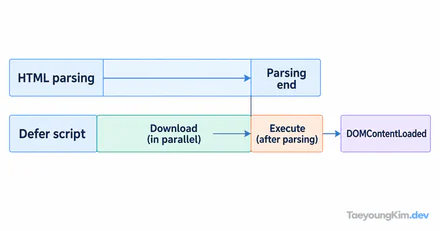
In the diagram, a button without an explicit type follows the form's submission path. type="button" removes that default submission behavior; a separate handler is needed for its intended UI action.
For navigation to another URL or a location in a document, use <a href>. Browsers recognize it as a link and offer actions such as copying its address or opening it in a new tab. Opening a help panel or changing a preview within the current page is an action, so <button> fits better.
<a href="/help">Read the help page</a>
<button type="button" id="open-help">Open the help panel</button>
These controls can look alike, but they promise different behavior. /help is an illustrative URL. The button needs a JavaScript handler; the HTML alone does not open a panel. Think of a link for a destination and a button for a change in the current interface.
Why can an omitted type submit a form?
This search form has a preview button and a search button. Give each its intended type:
<form action="/search" method="get">
  <label for="q">Search term</label>
  <input id="q" name="q" required>

  <button type="button" id="preview">Preview</button>
  <button type="submit">Search</button>
</form>
type="button" prevents the button's own default form submission. Add a click handler to implement the preview. type="submit" submits the search term. If you omit type from preview, it becomes a submit button in this ordinary form context and can send a request in addition to any preview behavior. The exact conditions for a missing type are in the HTML standard's button definition.
With method="get", the search term can appear in the URL. Do not use this example unchanged for passwords or other secrets. Choosing the button's role and choosing how to send sensitive data are separate decisions.
How do you check an unexpected submission?
Click Preview and watch for a URL change or network request. Add type="button", then repeat with the same input to confirm the preview click no longer submits. Finally, test that the Search button and Enter key still follow the intended submission path.
Calling preventDefault() for every submission can block the submission you actually need. Give each button the correct role first, and still validate submitted values on the server. One successful click does not prove that invalid input or unauthorized requests are rejected.
Key takeaways
Use <a href> for navigation, <button type="button"> for an action in the current view, and <button type="submit"> for form submission. When an unexpected request follows a button click inside a form, check its type first.