
If a blank screen briefly appears while an app starts, fixing only the Flutter widget tree may be too late. Before the first Flutter frame, Android or iOS shows a native launch screen. Check splash configuration at that platform boundary.
A splash screen bridges startup; it is not a loading screen
The splash screen makes the transition while the app becomes ready feel natural, but it should not conceal long-running work. Holding a logo on screen until a network request finishes can make the app look frozen. Keep required initialization short; show progress and retry options in the app UI for data that takes longer to load.
Check assets and backgrounds on small screens
Splash artwork needs enough clear space to avoid clipping across aspect ratios, resolutions, and dark mode. Text-heavy logos can become unreadable on low-resolution devices. After changing the configuration, check cold starts and dark mode on each target platform, not just in one simulator.
For example, if a dark logo sits on a light background, first verify that the combination remains readable in dark mode. Also check whether the background abruptly changes when the first app screen appears. The splash and first screen need not be identical, but if the transition feels broken, compare background colors and logo sizes first.
Generated native files belong in version control too
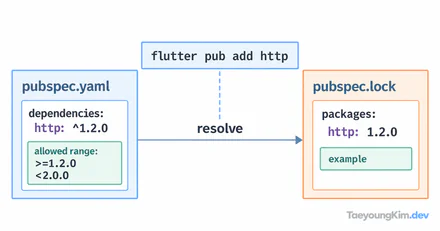
If a package or generator creates the platform settings, understand the relationship between the pubspec configuration and generated native files. Generation can change across Flutter, Android, and iOS versions. After updating, rebuild and check that the splash does not disappear or show stale assets.
When changing the startup screen, do not judge it from hot reload. Close the app completely and reopen it. If the change still does not appear, inspect generated native assets and whether the app was rebuilt before debugging the first Flutter widget.
| Check | Expected result | If it differs, inspect |
|---|---|---|
| Start after fully closing the app | Logo is not clipped; transition reaches first screen | Generated native assets and app rebuild |
| Start in dark mode | Background and logo retain readable contrast | Dark-mode asset settings |
| Start on Android and iOS | Layout fits each platform's screen | Platform-specific generated files |
Test cold starts on an actual device or emulator for each platform. Do not treat a result on one platform as proof that both work, and do not use a logo to hide a long network operation.
Key takeaways
The native splash appears before the first Flutter frame. Use brief, readable artwork and backgrounds, then check cold starts, dark mode, and multiple resolutions. Handle lengthy loading in the actual app UI rather than hiding it behind the splash.