
Two pages can look identical in a browser without having the same HTML structure. Building everything from div elements may be convenient for CSS, but assistive technology and the next developer must guess whether a region is navigation or main content.
Element names describe each region's role
The diagram shows semantic nesting such as nav inside header and article inside main. nav and main provide navigation landmarks, but they do not replace checks of heading order, keyboard behavior, and other accessibility needs.
A typical document page can be structured like this:
<header>
  <nav aria-label="Main navigation">...</nav>
</header>
<main>
  <article>
    <h1>Article title</h1>
    <p>Article body</p>
  </article>
</main>
<footer>...</footer>header, nav, main, article, and footer convey the roles of the page's regions. A screen-reader user can move among landmarks, and a code reviewer can spot structural mistakes such as multiple page-level main elements more easily.
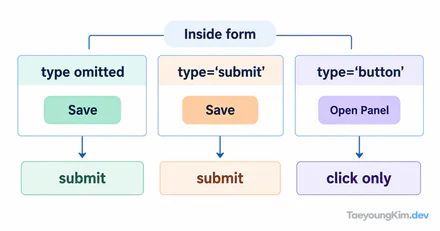
If a menu item actually navigates in this example, place <a href="/posts">All posts</a> inside nav. If a control triggers an action in the article, use <button type="button">Share</button>. Both should be reachable with Tab and activatable with Enter; a button should also work with Space. Check that nav and main appear separately in the assistive technology's landmark list. This reveals a difference from an identical-looking page made only of div elements.
Heading order describes structure, not visual size
The progression from h1 through h2 and h3 forms the document's outline. Skipping levels merely to change text size, or using an h2 to make an ordinary sentence bold, disrupts navigation through headings. Use CSS for size and HTML elements for meaning.
Semantic elements do not provide all accessibility by themselves
For a control that behaves like a button, use a real <button> to get keyboard behavior and state handling. Navigation belongs in an <a href>. Adding a click handler to a div means implementing focus, Enter and Space handling, and disabled behavior yourself, making omissions more likely.
Images need appropriate alt text too. Use empty alt="" for a purely decorative image so it is skipped, and briefly describe the key information when an image conveys content. A filename is not substitute text.
Forms also need more than different element names. Make sure assistive technology receives the name of each input even when nearby text is visible.
<label for="search">Search posts</label>
<input id="search" name="q" type="search">
Click the label and check that focus moves to the input. If for and id differ, that association is broken. Headings, landmarks, and form labels have different jobs, so adding a few semantic elements does not finish an accessibility review.
Key takeaways
Semantic HTML communicates a page's roles to browsers, assistive technology, and teammates. Set up landmarks and heading hierarchy, then use links for navigation and buttons for actions. Separating visual styling from HTML meaning improves both maintenance and accessibility.