
Do not format an EBS volume just because you have attached it. If you have not distinguished a new empty volume from a recovery or migration volume containing data, creating a filesystem can overwrite that data.
Identify the device and filesystem after attachment
The device name inside the operating system may differ from the name specified in the AWS console. Check its size, identifier, and existing filesystem before deciding what to do. Create a filesystem only on a confirmed new, empty volume; plan a read-only inspection or backup first for an existing volume.
lsblk -o NAME,SIZE,FSTYPE,UUID,MOUNTPOINTS
findmnt
The first command lists device names, sizes, filesystems, UUIDs, and mount points. The second shows current mounts. Compare these results with the volume size and identifier in the console. Running mkfs on a device with an existing filesystem can erase data, so there is deliberately no formatting command in this inspection step.
For example, xvda1 below is the root filesystem, while xvdf is a separate device that is not mounted. The UUIDs and sizes are illustrative.
NAME   SIZE FSTYPE UUID       MOUNTPOINTS
xvda    20G
└─xvda1 20G xfs    root-uuid  /
xvdf    10G xfs    data-uuid
Because /dev/xvdf already has xfs and a UUID, do not create another filesystem on it. An empty FSTYPE does not by itself prove that the device is new and empty. Check the device identity, any partitions and their filesystems, and whether the volume came from a snapshot. AWS's EBS volume guide likewise warns that formatting a snapshot-derived volume with an existing filesystem overwrites data.
Once you have identified the target, mount a volume with an existing filesystem as it is. A confirmed new empty volume needs a separate formatting procedure. The diagram shows this decision point.
The volume's identity and filesystem come first. Preserve and mount an existing filesystem; only a verified new, empty volume should proceed to filesystem creation.
Verify the mount and what happens after a reboot
Create a mount point and give the application user only the permissions it needs. If the mount must survive a reboot, prefer a stable identifier to a device name that may change, and test how mount failure affects boot.
If you have confirmed that /dev/xvdf already contains a filesystem and that /data is an appropriate empty mount point, you can check the mount like this. Device names vary by instance type; never copy this example without identifying the real device first.
sudo mkdir -p /data
sudo mount /dev/xvdf /data
findmnt -T /data
Check that the reported source is the intended volume and the target is /data. Separately test whether the application user can read and write only the required files. If you need automatic mounting, configure it using the verified UUID and test the boot behavior in an environment where an interruption is acceptable.
If the files do not appear, inspect before changing anything
Do not immediately try formatting again when an application cannot see files on an attached volume. First ask whether the device has a filesystem, whether it is mounted at the intended path, and whether you are looking at the right volume. These commands inspect rather than change disk contents:
lsblk -f
sudo blkid
findmnt -T /data
Compare device, filesystem, and UUID in lsblk -f with blkid. If findmnt -T /data points to a different device or to a parent filesystem, recheck the mount point. For a permissions error, inspect ownership and the process user instead of making the entire directory writable. If the failure occurs only after reboot, validate the UUID and mount options in a separate environment.
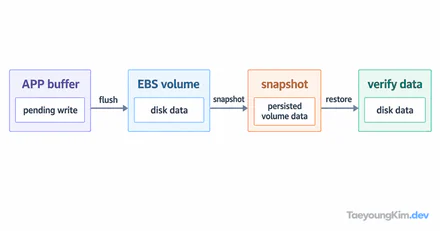
Before modifying a volume containing existing data, check that you have a recoverable snapshot and a tested recovery procedure. A snapshot's existence alone does not prove you can restore from it. Database volumes also require attention to application data consistency, not just the filesystem.
Key takeaways
Start EBS work by identifying the target, not by formatting it. Distinguish new storage from existing data, then verify mounting, permissions, and reboot behavior. Test the recovery path as well as the backup creation step.