
You built a web app image, but its container starts and immediately stops. The Dockerfile even says EXPOSE 3000. If its last line is CMD ["npm", "run", "build"], the issue may be when that command runs and when it finishes, rather than the port.
Why does CMD build lead to an exited container?
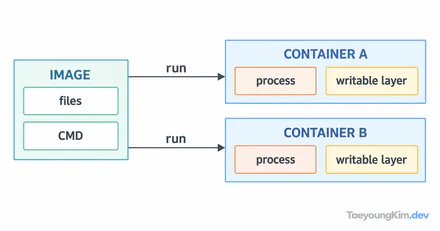
docker build creates an image. It does not execute the Dockerfile's CMD line during that build; it records the default command for a future container. RUN, by contrast, executes while the image is being built. The Dockerfile reference defines RUN, CMD, and EXPOSE separately.
EXPOSE 3000
CMD ["npm", "run", "build"]
Starting a container from this image runs npm run build. If the build script creates its output and exits successfully, the container's main process is finished. Exit code 0 may mean the build succeeded; it does not mean a web server is still running. A failing build may instead produce a nonzero exit code. Neither outcome serves the app.
The diagram separates image preparation from runtime: use RUN to prepare build output while creating the image, and CMD to start the server when the container runs.
Separate RUN build from CMD start
For a project that needs a persistent web server, separate the build and start commands. This example assumes package.json and package-lock.json exist, both build and start scripts are defined, and start runs a server that remains active.
FROM node:22
WORKDIR /app
COPY package*.json ./
RUN npm ci
COPY . .
RUN npm run build
EXPOSE 3000
CMD ["npm", "run", "start"]
RUN npm run build prepares the output during image creation. CMD runs npm run start when the container starts. Check what start actually does in package.json: renaming a short-lived script will still leave a short-lived container. The runtime dependencies, build output path, and environment variables must also fit the project.
EXPOSE 3000 documents the port the image expects the app to use. It neither launches a server nor publishes a host port. If the app binds to 0.0.0.0:3000 inside the container, a local test can publish it with -p 127.0.0.1:3000:3000. Binding only to the local host side is appropriate for a practice setup that does not need external access.
What should you inspect when the container exits?
Narrow the problem down in this order: state → exit code → logs → actual start script. Replace demo-web with the container name you used.
docker ps -a --filter name=demo-web
docker inspect demo-web --format '{{.State.ExitCode}}'
docker logs demo-web
If the state is Exited (0) and the log ends after a completed build, check whether CMD ran the build rather than a server. For a nonzero code, inspect dependency, file-path, and environment-variable errors first. A Dockerfile that copies package manifests but never runs npm ci, for example, may fail for missing dependencies. An exit code alone cannot establish that CMD is the root cause.
In production, check that the server process remains alive and is ready to serve traffic, not just that a port is documented. Even after moving the build to image creation, a bad start script or a server bound only to 127.0.0.1 inside the container can still prevent access. Inspect logs and the application's bind address.
Key takeaways
RUN executes during image creation; CMD supplies the command executed when a container starts. A one-time build in CMD can exit successfully while leaving no server running. For a web app, separate build from start and inspect container state, exit code, logs, and the real script in package.json when it stops.